



Using Universal Analytics
Step 1 | Get your Google Analytics tracking ID- Log in to your Google Analytics account.
- Click the Admin icon in the bottom-left corner.
- Click “Create Property” and enter the required settings (property name, time zone, and currency).
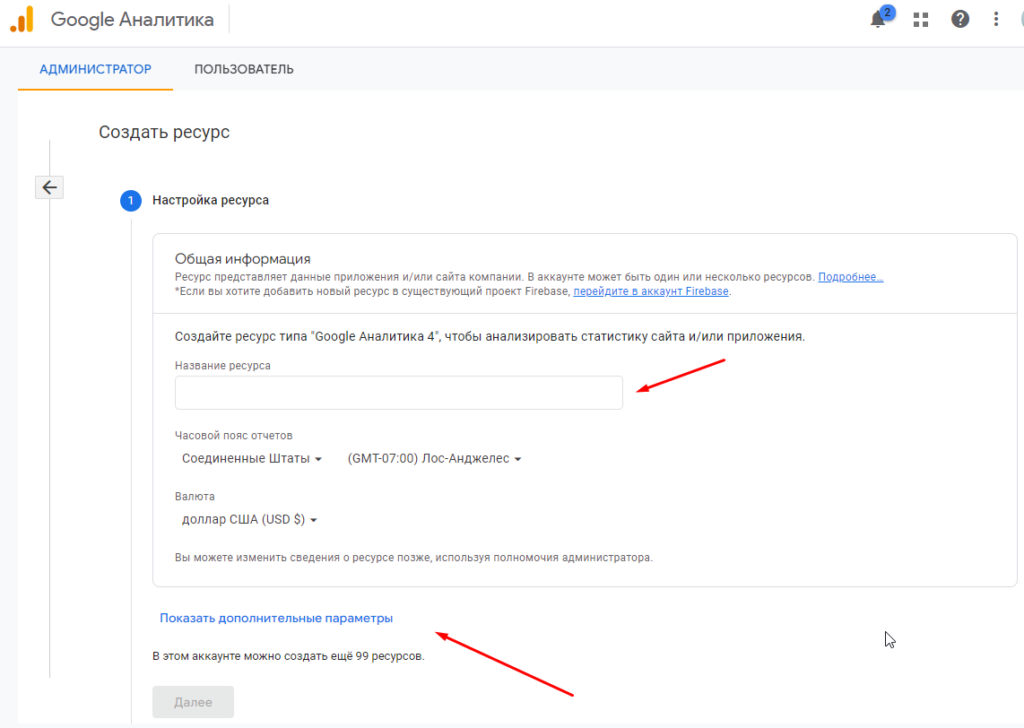
- Click “Show advanced options”.
- Enable the “Create a Universal Analytics property” toggle.
- Enter your website URL.
- Select “Create a Universal Analytics property only”.
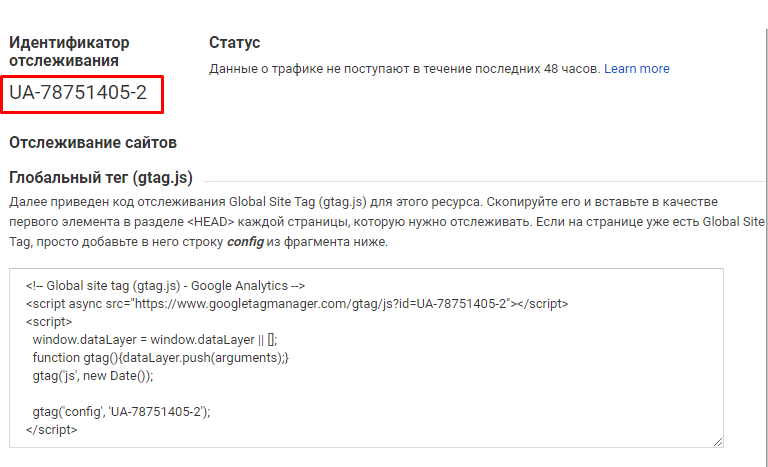
- Copy the tracking ID.
 Step 2 | Adding the Google Analytics ID to your Wizzylab website
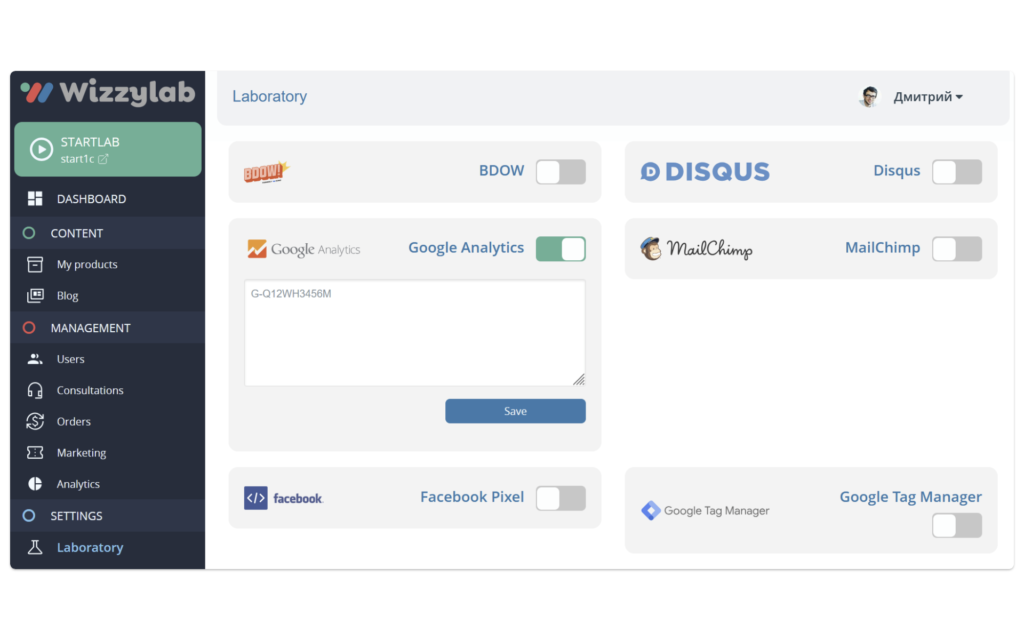
Go to the Wizzylab dashboard → Laboratory → Google Analytics.
Enable the toggle, paste the ID, and click “Save”.
Step 2 | Adding the Google Analytics ID to your Wizzylab website
Go to the Wizzylab dashboard → Laboratory → Google Analytics.
Enable the toggle, paste the ID, and click “Save”.
 Statistics should appear within a few hours after adding the tracking ID.
Using Google Analytics 4
Integration with Google Analytics 4 is already available and works alongside the previous analytics version. You can connect GA4 and track events on your website.Also published on Medium.